


How to Embed Video on a Web Page
To embed video on a web page, you don't need to upload your video to youtube, vimeo, or some other video sharing service. A lot of times in a corporate setting, uploading your videos to a third-party site isn't appropriate or allowed. Does this mean you have to resign yourself to a basic WMV output that opens up in the Windows Media Player? No. You can grab the embed code from Camtasia Studio's html output and copy it to a custom page to embed your video.
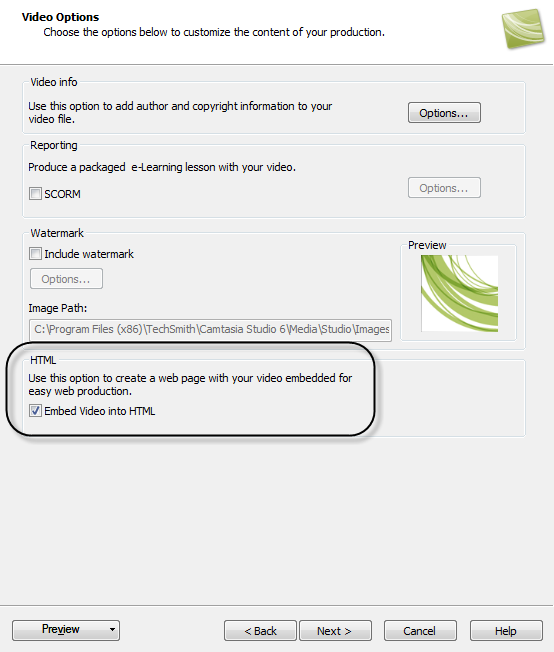
When you produce your video from Camtasia Studio (or from another video editing tool), make sure you select the Embed Video into HTML option.
In the output, you'll see an HTML file. Open the HTML file up in a text editor such as Notepad++. You'll see two sets of object embed code. Copy the first set, which begins with <div id="media"> and ends with </div>. It will look something like this:
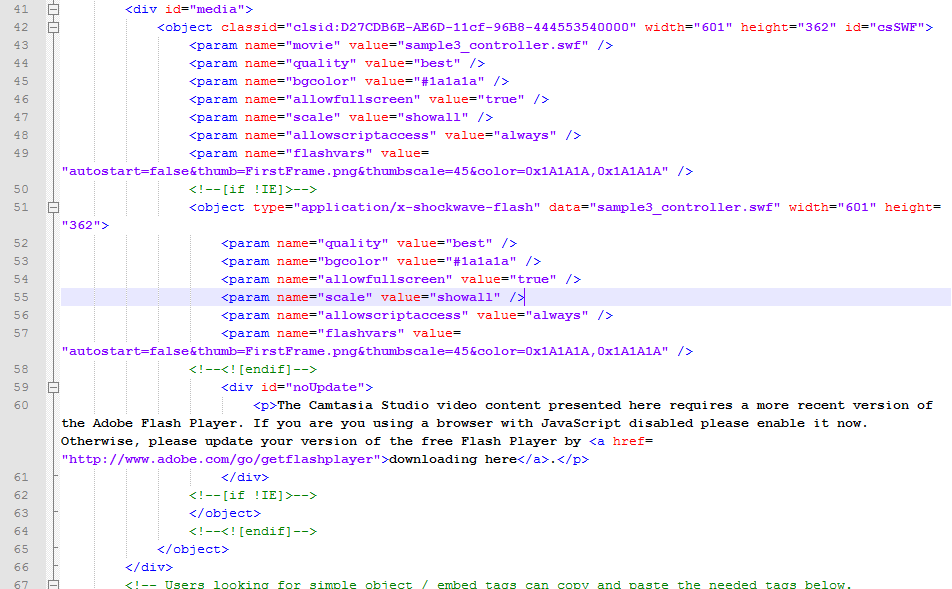
I know there's another section of embed code that actually says "Users looking for simple object / embed tags can copy and paste the needed tags below ..." However, as of this post's date, that code has a bug that prevents the first frame from appearing in Internet Explorer. I told Techsmith's support about this bug, so hopefully they'll fix it in an upcoming release.
Now that you have the embed code, do two more things. Upload your video output files to your server. They don't need to be in the same folder as your web page at all. In fact, you can have them on another server entirely.
After you upload your video files to a server, change the paths in the code to reference the location of the files. For example, if the path to the files is https://idratherbewriting.com//images/2010/01, add this path before the video file names. You have to include the URL in three places.
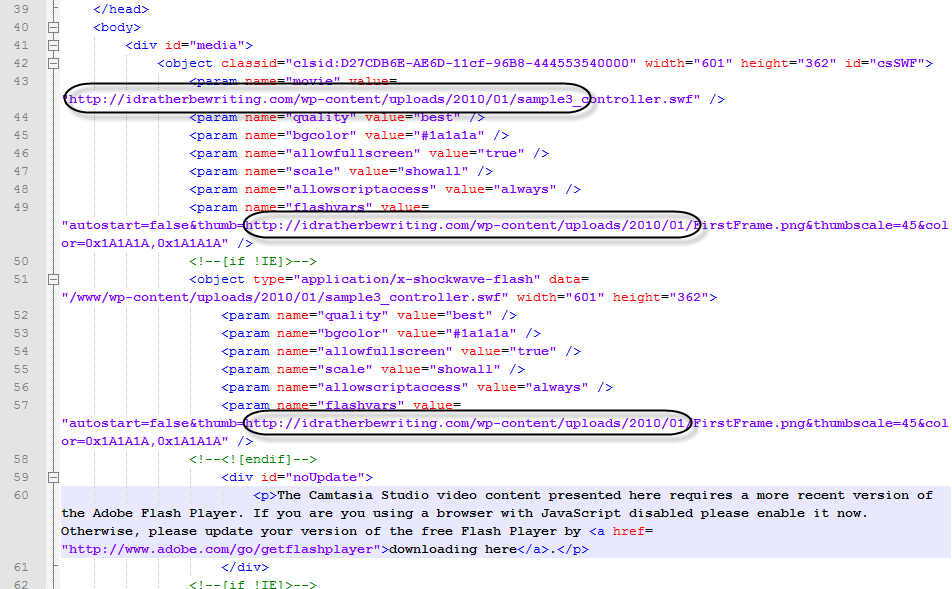
Now that you've updated the paths to reference the location of the video, just insert the object embed code into the page where you want to display it. As an example, I'll paste my sample code below. (By the way, the 15 second video below doesn't have any sound or show anything in particular -- it's just a sample of an embedded video.)
Now your video is embedded directly on a web page, which makes it easy to view.
About Tom Johnson

I'm an API technical writer based in the Seattle area. On this blog, I write about topics related to technical writing and communication — such as software documentation, API documentation, AI, information architecture, content strategy, writing processes, plain language, tech comm careers, and more. Check out my API documentation course if you're looking for more info about documenting APIs. Or see my posts on AI and AI course section for more on the latest in AI and tech comm.
If you're a technical writer and want to keep on top of the latest trends in the tech comm, be sure to subscribe to email updates below. You can also learn more about me or contact me. Finally, note that the opinions I express on my blog are my own points of view, not that of my employer.