


Extracting Images from Visio and Inserting Them in Indesign
Have you ever tried to find cool graphics for conceptual diagrams but find yourself coming up empty handed? Sure, sites like istockphoto.com make icons available inexpensively. But no matter what the cost, if you work for a company you still have to submit an expense request, get it approved by management, and then subtract the cost from a dwindling budget. It's a pain in the neck, and you're usually in a time crunch, right?
Never fear, Visio is here. Visio has tons of great-looking icons. And they're all vectors, so they resize seamlessly. There's only one problem: they're stuck in Visio.
With a little manipulation, however, you can unfree them from Visio and keep them looking sharp for insertion in InDesign. You need a power app (namely, Adobe Illustrator), but that's it.
To extract images from Visio and insert them into InDesign, here's what I do:
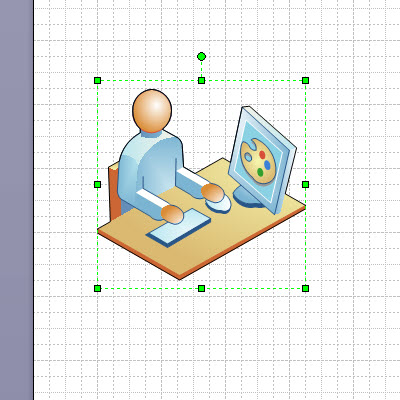
- Open Visio and find the icon you want. Search for "secretary" or "design" and you'll find the standard bald blue man. Select and copy the image.
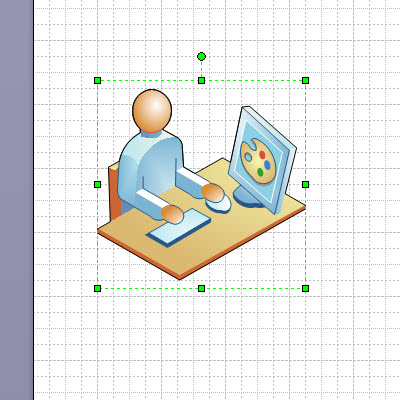
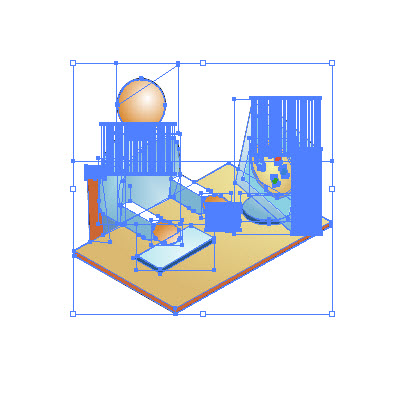
Copy the image from Visio - Open Adobe Illustrator, create a new document, and paste in the Visio icon. You'll notice that each of the sixteen million layers for the image suddenly appears.
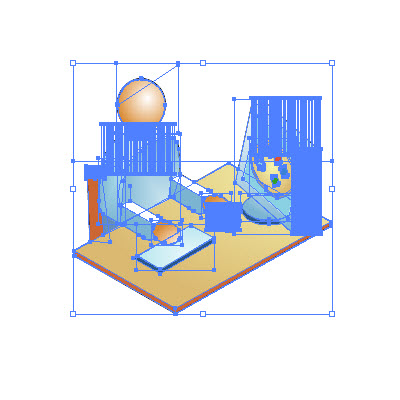
In Illustrator, you can see see the layers - Right-click the icon and choose Ungroup.
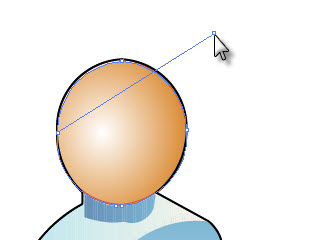
- Now here you can make a few adjustments to the icon, mostly removing things or changing colors. On the Illustrator toolbar, the black arrow allows you to move things, and the white arrow allows you to distort or reshape things. The white arrow is handy, for example, if you want to squish in the line that mysteriously extends from the head of the icon.
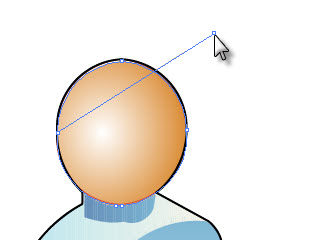
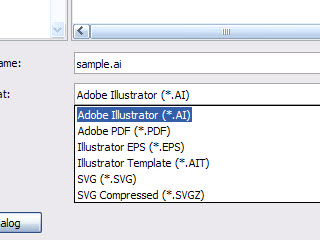
Modify the image - When you're finished, go to File > Save As and save it as an Adobe Illustrator (.ai) file type.
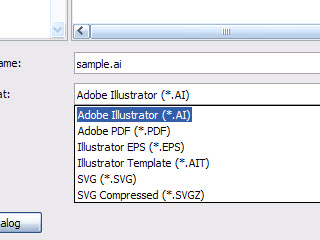
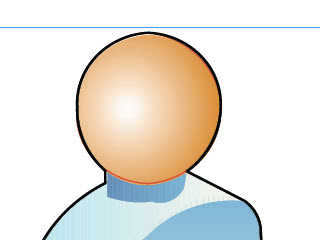
Save it as an .ai file - In Adobe Indesign, go to File > Place and insert the image. You can still resize it and the vector properties of the image are retained, so you won't see the jagged edges. In other words, Indesign allows you to embed the image as a vector, rather than rasterizing it and having it become pixilated.
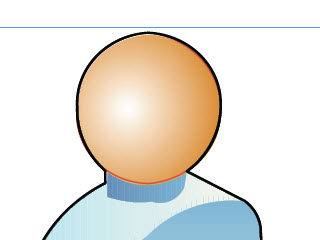
Edges still look sharp in InDesign
If it's absolutely necessary, you can convert it to a GIF, but the edges will look jagged. Open up the file in Photoshop and go to Image > Mode. Make sure RGB color and 8 bit are selected. Now save it as a GIF file or a Photoshop (.psd) file. The edges will be a bit jagged, but as long as you don't resize it, the edges won't be too bad.
About Tom Johnson

I'm an API technical writer based in the Seattle area. On this blog, I write about topics related to technical writing and communication — such as software documentation, API documentation, AI, information architecture, content strategy, writing processes, plain language, tech comm careers, and more. Check out my API documentation course if you're looking for more info about documenting APIs. Or see my posts on AI and AI course section for more on the latest in AI and tech comm.
If you're a technical writer and want to keep on top of the latest trends in the tech comm, be sure to subscribe to email updates below. You can also learn more about me or contact me. Finally, note that the opinions I express on my blog are my own points of view, not that of my employer.