

Home
  • About
  • Contact
  • My Calendar
  • Presentations
  • WordPress Consulting
  • Advertising
  • Podcasts
  • Jobs

  • WordPress Image Galleries — Give Your Photo Galleries a Lightbox/Slideshowesque Display

    July 10th, 2008 | Posted in Technical Writing, WordPress 56 Comments »

    Jan 2009 Update: Please see the note at the bottom of this page. Because I had trouble using captions with the Photojar plugin, I deactivated the plugin.

    A WordPress image gallery allows you to create a sharp-looking presentation for your photos or images. With just a couple of plugins and tweaks and some basic understanding of the WordPress gallery tag, you can make a Lightbox/Slideshowesque display of your gallery images without any custom coding.

    Here’s an example of a WordPress gallery that goes a step beyond the default. Click each of the images, and then click the arrow buttons on the image to move to the next one. Instructions for creating such a gallery are below.

    To create a WordPress image gallery like the one above:

    1. Download and install the PhotoJAR plugin and the Lightbox plugin. Unzip and upload to your plugins folder, and then activate as usual.
    2. After activating the plugins, click the Settings tab (far right), and then click PhotoJAR. In the Link Images To drop-down, select Lightbox/Slimbox. In the Gallery Image Size filter, select Thumbnail. Then click Update Options at the bottom.
    3. Click the Lightbox2 tab, choose the lightbox theme color you want, and then click Save Changes.
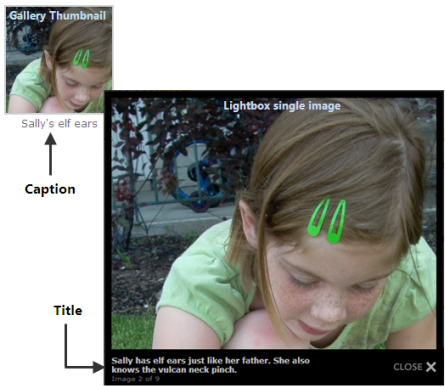
    4. Create a new post and upload your collection of images by clicking the Add an Image button. When you upload an image, it is associated with the post. With each image, add text in the Title and Caption fields. The caption will appear below the gallery thumbnail (so make it short), whereas the Title will appear below the image when viewed alone (so make it longer).
    5. After uploading the images, close the dialog box. Do NOT click the Insert into Post button. Your images are already associated with the post. When you add a gallery tag, they will automatically be pulled into the post without any html code at all.
    6. In the HTML view, add the following code to your post: [gallery size=”125×125xcrop”]

      . 125 x 125 is the thumbnail size, which you can change to best fit your blog’s width. By default, three images appear in a row.

    7. Modify the styles for the captions and image sequence numbers by modifying your Lightbox theme’s style sheet at /wp-content/plugins/lightbox-2/Themes/Black/. In the following style declarations, caption controls the Title; numberDisplay controls the “Image 1 of 7…” text. Change the values as desired.
    8. #stimuli_imageData #stimuli_caption{ font-weight: bold; background-color: black; font-size: 12px; color: #c0c0c0;}

      #stimuli_imageData #stimuli_numberDisplay{ background-color: #000000; display: block; clear: left; padding-bottom: .5em;}

    9. Publish your post.

    Rearranging the Gallery Image Order

    With WordPress 2.6, you can arrange the gallery image order by dragging the images on the Gallery tab into the order you want.

    Additional Reading

    Note About Image IDs

    If you don’t want to insert an entire gallery, you can insert individual images (which are associated with any post), but you have to know the image IDs. To view the image IDs, go to the Manage tab and click the Media Library subtab. Mouse over the image title and look at the Post ID that appears in your browser’s footer. You can then insert the single image into your post by using the following code: [image=23]. Also, replace 23 with your real image ID.

    You can also click the Insert into Post button that appears below the image when viewing the Gallery tab.

    Note About the Description Field

    You’ll notice I didn’t mention the Description field. The Description field doesn’t apply to images with the Lightbox effect. If you weren’t using the Lightbox effect for the gallery, each individual image — when clicked — would appear on its own page, with the Description text below it. The Lightbox plugin makes the image appear in a layer on the current page.

    Photo Credit Goes to Jane

    Special thanks to Jane for the photos (yes, they’re our kids). The post where she wrote about this event is here: Sugar and Sugar, and Everything Nice.

    Nov 5, 2008 Update

    I had trouble getting WordPress’s new caption feature to work with Photojar, so I actually went back and undid all the posts with images since implementing Photojar. Photojar writes the image tag differently than WordPress 2.6 when you insert a caption. I love having captions, so I deactivated Photojar. Sorry. However, depending on your needs, this plugin may be right for you.

    These icons link to social bookmarking sites where readers can share and discover new web pages.
    • del.icio.us
    • StumbleUpon
    • Facebook
    • LinkedIn
    • TwitThis

    Tags: , , , , , , , ,

    56 Responses to “WordPress Image Galleries — Give Your Photo Galleries a Lightbox/Slideshowesque Display”

    1. WordPress Image Galleries — Give Your Photo Galleries a Lightbox/Slideshowesque Display

    2. Janet says:

      That’s nice, Tom, but people who are lazy like me might prefer to use PictoBrowser with their Flickr account. You can see an example here: http://foodperson.com/2008/07/04/independent-community/. You can simply click on “PictoBrowser” is somebody’s else’s display, and it takes you through the simple steps to set up your own.

      Janets last blog post..Roundup: Prices, pantries, programs

    3. [...] love this plugin and wrote a post about it here. But I have a question. How can I use the gallery tag and also control the order of the [...]

    4. That plugin rox! Thanks!

      Pittsburgh Newss last blog post..Tin Can Canoe

    5. shannon says:

      What cute images to use for your tutorial. Aren’t kids great!

    6. I knew about lightbox plugin which I used on my wordpress blog but never heard of photojar one.. It seems to be worth to give a try….

      A Software A Days last blog post..Take back the web with firefox

    7. AllenA says:

      Thank you! I’m looking for something to organize my wedding photos a bit better, this may be what I need :)

      AllenAs last blog post..Linda and Chris’ Wedding

    8. R says:

      Does it work with WP 2.6.? I already have lightbox.

      Rs last blog post..Soziale Netzwerke: Angriffsziele von Cyberkriminellen

    9. kugelblitz says:

      looks like the lightbox does not work in this example

    10. Tom, It looks like your lightbox.js file is broken. Line 348 should be:

      imageArray.push(new Array(imageLink.getAttribute(‘href’), stimuli_image_title));

      R, I have PhotoJAR running on WP 2.6.

    11. Nino says:

      Many thanks! Now I shall try:)

    12. Tom says:

      JARInteractive, thanks for the detailed info about the code fix with the lightbox.js file. Pretty cool that you could see that detailed level in the code without even having the file.

      I was playing around with that file last week and broke it. I have the NextGen Gallery implemented with a certain site where I needed long captions below the pictures. Whenever long captions appear in either the lightbox or thickbox effect (the pop-out picture), they don’t display well. I wanted to somehow disable the image from popping out when it was clicked, but alas, I could never figure out how to do that, so I hard-coded the images into each page. I must have been experimenting with the lightbox.js file on my own site too and broke that code. Again, thanks.

      Tom

    13. Jae Hyun Lee says:

      Thanks very much!

      I will try learning it with the tutorial.

      Jae Hyun Lees last blog post..Several Pictures of Yonsei Univ.

    14. alina says:

      Great, this is just what I was looking for. Thanks a lot.

    15. thank you as well. this is exactly what I was looking for. I have many thing to organize

    16. Art says:

      Very cute kids and very informative and detailed instructions. Thank you for the winning combination!

      Arts last blog post..Encyclopedic Knowledge: showing Bits/Programs

    17. Excellent shots you got here.

    18. Kugelblitz says:

      @ JARinteractive,
      that line ” imageArray.push(new Array(imageLink.getAttribute(’href’), stimuli_image_title)); ”
      looks exactly like that but it still does not work with my Wordpress 2.6 and Lightbox 2.7.7

    19. I followed your instructions, but the thumbnails disappeared except for a small icon which, when clicked, produces the lightbox effect. The thumbs on my media gallery in WordPress 2.6 give the message:

      Error Resizing Image: error_loading_image

      I dumped everything and started again, but got the same effect.

      Any suggestions?

      Thanks,

      Craig

    20. Janny says:

      Excellent shots you too got here.

      Jannys last blog post..Загадка

    21. joe says:

      Thanks for putting this together.

      On step 6 you say:

      “Add the following code to your post: , but replace the angle brackets with square ones, [ ]”

      There is no code following. What am I missing?

    22. joe says:

      Craig,

      I had same problem. I noticed that the thumbs where sources at wp-content/plugins/photojar-base/cache/ which did not exist, so I created folder (cache) and chmod to 777.

      Worked fine after that.

    23. Tom says:

      @Joe, sorry about that omission. I just fixed it. For some reason, I have the hardest time getting code to look right in my posts.

      @Craig, does a plain gallery tag work for you? Maybe you have another plugin that’s interfering? I’d say, upgrade to the latest version of WordPress, deactivate all other plugins, and then just activate the Lightbox 2 plugin. See if that works. (It applies the Lightbox effect to every picture on your entire site.) If that works, activate Photojar. Then continue activating the other plugins one by one, each time testing the Lightbox effect to make sure it’s not broken.

      If that doesn’t work, google site:wordpress.org/support lightbox + your error. In other words, search the forums for your answer. Also try the Lightbox plugin author’s page.

      If that still doesn’t work, try posting questions on the forum and contacting the Lightbox plugin author. I think (although I may be wrong) that there are other Lightbox type plugins, so try those.

      Another possibility may be your browser. Try viewing the effect in different browsers. I’m not sure what technology the Lightbox effect uses, but perhaps it’s a javascript issue and your browser blocks them. Upgrade to the latest version of IE and Firefox. If you’re already using the latest, refresh the settings, clear the cookies/cache, and do a Help > Detect and Repair.

      If all of that doesn’t work, please let me know. I’m out of suggestions, but I’d be surprised of one of those solutions didn’t work for you.

    24. Thanks, Tom! – problem solved

    25. Tom says:

      Craig, do you know what fixed the problem (for the benefit of others who may be experiencing the same)?

    26. Deactivating and reactivating the plugins worked.

    27. Cute Kids says:

      Wow! Very cool, I love lightbox applications and your kids are so so cute, thanks for the tip – keep em coming!
      Danielle.

      Cute Kidss last blog post..Nature Baby Girl Names

    28. jiu says:

      thank you so much. I could create a shop on blog with this tutorial :)

    29. After resolving the missing directory issue, by chmoding the cache folder, I’m not getting any thumbnail created. Is anyone having the same problem?

    30. Kuntal says:

      Catchable fatal error: Object of class WP_Error could not be converted to string in F:\Web\Sites\drakontas.org\bhangra\! www\wp-content\plugins\photojar-base\pj-image-resize.php on line 82

      what do i do?

    31. jrgd says:

      hey! Thanks for the step by step instructions – it seems to be working all fine…

    32. [...] WordPress Image Galleries simple instructions on setting up photo jar and lightbox to work with wp2.6.2 (tags: wordpress plugin light box gallery) [...]

    33. Blog Picture says:

      Expert’s ideas. I appreciate this. Will try to apply the information provided herein and see the specific outcome in real situations. Many thanks.

    34. Blog Picture says:

      In-depth view. Like it very much. I will follow these tips provided herein to examine its specific outcome after putting into use in real cases. Thanks from me.

    35. Maxic says:

      hi
      great tutorial! i use Visual LightBox, VisualLightBox.com to configure lighbox. very easy. at least to generate image thumbnals

    36. Trade Credit says:

      Great stuff. Really awesome tutorial. Really clear and understandable. As Maxic I too use Visual Light Box. But this method definitely needs to be given a try out. Great work. appreciate it. Keep it up. Cheers

    37. jrgd says:

      strange: it seems the script is now broken – i have 2 errors on your page (urchin and contact-form-7) so i can’t see your demo anymore

    38. keith Rich says:

      Aaaaaw that’s cute! Good plug-in!

    39. Nice work. Loved the tutorial. always wanted to have that effect on my pictures. And I can try it out now. Thanks for the information.

    40. Very useful. It’s always better to get the message through a picture or a photo. The page looks colorful and it’s a pleasure to the visitors. I really like the image album and how it works. I will definitely try it out. Thanks.

    41. best photos for sweet girls

    42. This is one useful way to show images on my blogs, with your step by step, I can try putting my product images not just only in orders, but also let readers have an easy way to view those photos.

      Thanks for sharing the guide.

    43. Have you tried NextGEN Gallery Plugin? I use it for my wedding & portrait photography galleries. You can use captions with it.

    44. ted pottel says:

      great thanks. and yes there are easier ways but the end results really show the time and quality of your work. can wait for the nest

    45. I have to try to install the plugin. Thanks!

    46. That’s a really nice tutorial. I always looked forward to do something fun with my fun pictures :) I’m definitely going to try this out. thanks. By the way are those your kids? They are sooo cute :)

    47. Nice work. Lovely tutorial. My friend who came around yesterday mentioned about your site. so just thought to visit. Love your blog. regarding the wordpress image gallery, I heard it will be considered to have a big change in the next release. Have to wait and see.

    48. Love me says:

      Gallery at nextgen best plugin. i used to make my own gallery. It easy.

    49. circle says:

      Nice work. I tried to this tutorial.

    50. Nice tutorial. Stumbled across it randomly. But loved the tutorial. Thanks a lot for it. Keep it up. Love your blog.

    51. Great stuff. I too am a huge fan of the wordpress image gallery. This tutorial will definitely help few of my friends. Thanks for it. Keep it up. Cheers

    52. Hey,awesome tutorial. I’m quite new to wordpress so tutorials as yours are my learning resources :) Never knew wordpress has a such awesome Image gallery. Thanks a for the information. certainly should try it out and see. Thanks again.

      • Tom says:

        The image gallery that is built into WordPress by default is pretty amazing. If you have an older version of WordPress, this is something you may not have realized.

    53. Hi, thanks for the great post, I was really looking for something like this.

    Leave a Reply

    « »