


Customizing Your SharePoint Site? Read These 10 Concepts/Gotchas First
Preface: I wrote this post after spending a month digging deeply into SharePoint, attempting to customize and brand the site as well as migrate all my help content to it. If you're totally unfamiliar with SharePoint, this post will not get you up to speed. But for those embarking on a SharePoint customization challenge, most likely you're already familiar with SharePoint. Reading these ten concepts and gotchas will help you avoid some of the pitfalls I encountered when customizing my site.
Note: When I say "SharePoint," I'm really referring to MOSS 2007. But SharePoint actually has two components -- a free one that's available on any Windows server, called Windows SharePoint Services. And an additional layer that gives you more functionality, called Microsoft Office SharePoint Server 2007, which isn't free. When I use the term "SharePoint," I'm referring to the latter version, the un-free one.
1. A good SharePoint site is one that doesn't look like a SharePoint site.
SharePoint provides push-button site publishing, so creating a site takes literally 3 seconds. But all the sites look the same. Having an out-of-the-box SharePoint theme, just like everyone else, makes you look like a novice, on par with the completely untechnical depts who can barely operate SharePoint, much less customize it.
Here's what the default theme looks like.
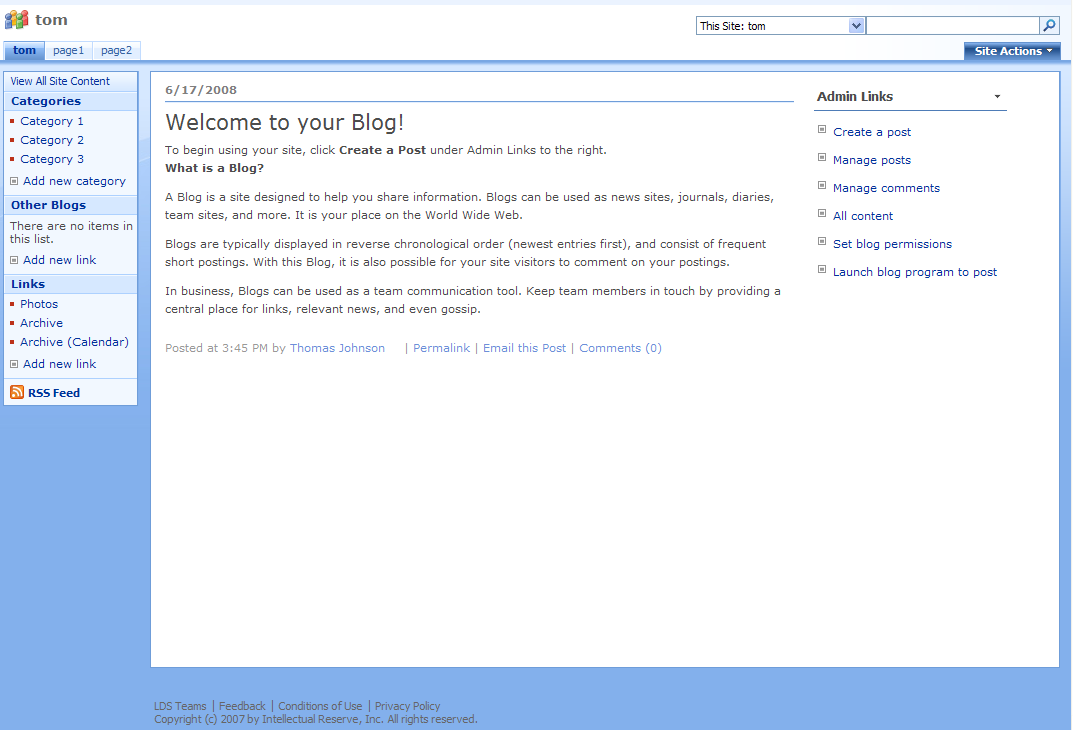
More importantly, SharePoint has a lot of negative baggage. All those poorly organized, neglected, outdated SharePoint sites immediately come to the user's mind. Do you want your SharePoint site mixed in with this negative baggage? No. You want your site to gather respect from your users. A little awe. Not a sigh and an "oh, another pathetic SharePoint site" response.
Customizing your Sharepoint site should definitely be in the plans. But before you run forward, make sure you actually can run. SharePoint has three basic levels of rights access: server admin, site collection admin, and site admin. If you only have site admin rights, you're at the mercy of your site collection admin as far as customizations go. If you have site collection rights, you have a lot more customization power. And if you're a server admin, you can do almost anything (and probably break everyone's site in the process).
If you're only a site admin, stop here. You can't customize much of anything. Sure, SharePoint allows you to pick about a dozen different incredibly ugly themes, but they all shout SharePoint. If you're a site collection admin or server admin, keep reading. There are additional themes that don't look anything like a SharePoint site, but they're hidden away.
To view these alternative, hidden themes, which look nothing like regular SharePoint sites, you have to activate the Office SharePoint Server Publishing Infrastructure feature at the site collection level. See the following image.
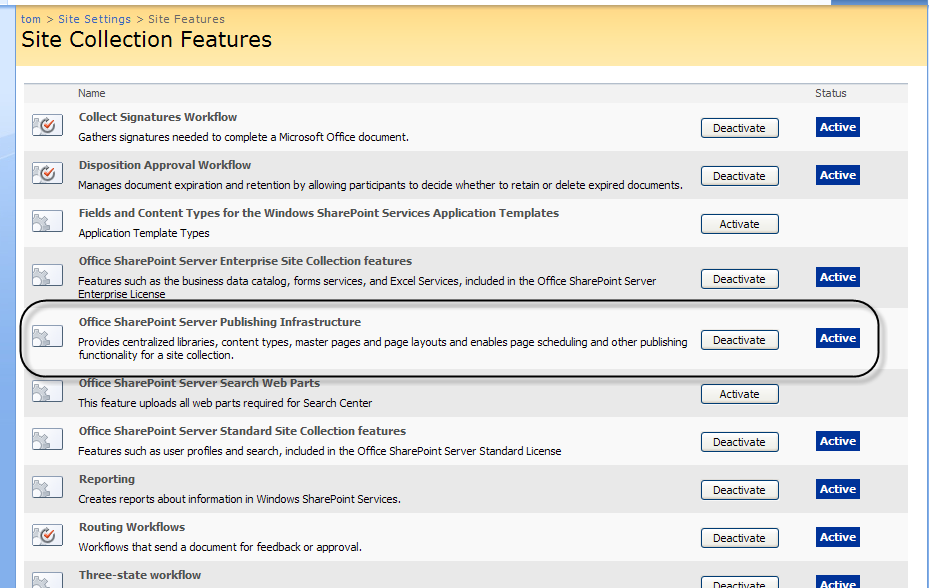
(You can click any image to see the full size at a crisper resolution.)
After you activate the publishing feature at the site collection level, you can then activate the publishing feature at the site level. Once activated, you have a whole new world of customization features available to you. You'll also notice that the Site Actions menu has about three times as many options on it.
With the publishing features activated, go to your settings, and under the Look and Feel column, click the Master Page link (this link only appears after you activate the publishing features). Select a new master page, such as Blueband.master, my favorite. See the following image.

Here you can also select inheritance properties for master pages and stylesheets. In other words, you can determine whether the subsites inherit the Blueband.master theme from the parent site. And you can select the CSS file your site uses (choose Band.css).
Note: I'm not sure that the Blueband.master is a "theme," rather than just a different master file. But it seems like a new theme to me. In contrast, the default "themes" available at the site level, such as Vintage, are really just color variations.
2. Without SharePoint Designer, you can do nothing. With SharePoint Designer, you can do nothing.
If you don't have SharePoint Designer, you can do very little in customizing your site. That said, SharePoint Designer isn't very useful. It provides a box of tools in the upper-right, as if you could just insert buttons and controls to modify your site. But the toolbox requires advanced knowledge.
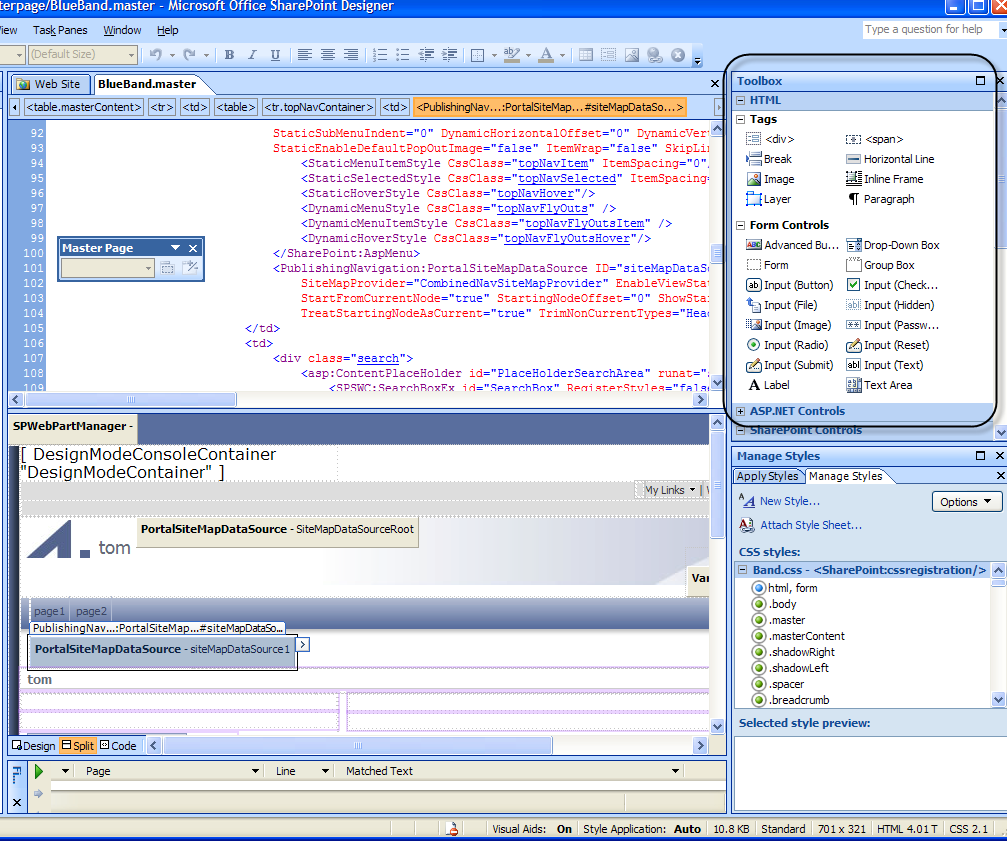
SharePoint Designer is only useful in that it gives you access to the stylesheets and allows you to make minor edits to some of the pages. Beyond that, you need to be a SharePoint programmer to really modify the page. The page's code is not basic HTML or XML. Additionally, much of it is heavily nested in tables.
3. Like the Borg, all content pages render through Default.master or another master file.
SharePoint's files are all incestuously interconnected. If you've seen the Borg, from an episode of Star Trek, it works the same way. The Borg is a collection of individual people that are all controlled through a central person. In SharePoint, that central person is the master file. If you're using your default theme, it's the Default.master file. If you've selected Blueband, then Blueband.master is your master file.
When you create a page (by going to Site Actions > Create a Page), you're not creating a page that exists independent of the master. The content page renders through the master, or uses the master to render.
You access the master by going to _catalogs > Masterpage > Blueband.master in SharePoint Designer (at the site collection level). The master has numerous content placeholders, which you see when you open the master in SharePoint Designer. These content placeholders also exist on the content pages that render through the master.
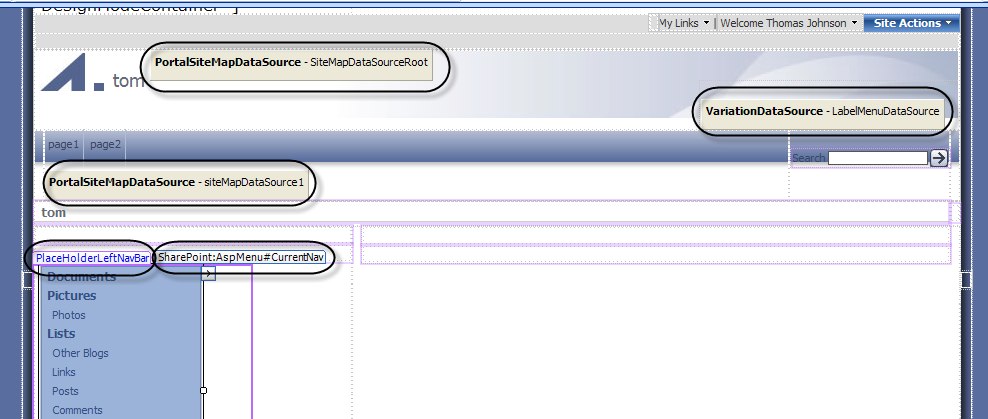
If you delete a content placeholder on the master, it breaks all the pages that use the master to render. So be sure you leave content placeholders alone.
What if you don't want one of those content placeholders? Well, you can actually delete it. When you open a content page, you'll see an error message prompting you to find the content placeholder you deleted. Just delete the placeholder from the content page as well and it'll work.
4. When you edit the master, the core.css file unghosts.
An interesting thing about SharePoint is how it hides the stylesheets. Core.css is the main stylesheet that styles the default.master (and subsequently every other page). But core.css exists at the server level, not the site collection level. It's only when you start editing the master file that the core.css file "unghosts" and copies down to your site collection level.
To unghost the core.css file, put your cursor somewhere on the master page and change the font through the CSS panel on the left. After saving your changes, you might see core.css suddenly appear as a new tab. It is then permanently available in the _styles folder of your site.
Notice I said "might." Actually, if you're using Blueband.master, there are at least two main CSS files that style the page: core.css and band.css. If you edit the wrong part of the master page, band.css might appear instead of core.css. At any rate, I don't think band.css unghosts from the server in the same way that core.css does, although to be honest I'm not sure. In my setup, core.css unghosts at the site level, while band.css is available at the site collection level.
Regardless of how you accomplish it, changing the styles through the core.css file and the band.css file is key to customizing your SharePoint site.
5. You can't see the image directory that the core.css stylesheet refers to.
As if the confusion over stylesheets wasn't enough, images are also problematic. First, there are two sets of images: images that belong to the blueband.master file and images referenced in core.css. The blueband.master images are available in the site collection level under Style Library > en-us > Images. If you open that folder up in Windows Explorer, you can quickly drag those images to your desktop and start modifying them in Photoshop.
But where are the images referenced by core.css? Remember that the core.css file originally exists on the server and is only copied down to the site collection level after you start modifying your master file. Well, the images don't come along for the ride. If you want to change an image referenced in the core.css file, you have to download the image from your site (by right-clicking and downloading the image or by noting the file name and path in the core.css stylesheet and then inserting it in your web address so you can view and then download the image).
After you download the image, you can't upload it to your server image directory unless you have access to the server, and even if you did, it might change that image for all other SharePoint sites on that server.
So you upload the image to a picture library on your site. Then replace the original URL in the core.css stylesheet with the new URL.
Now, you may think that by deleting, overriding, or completely annihilating the images in either Blueband's image location or uploading new images to replace core.css you would actually be successful in replacing the previous image. Nope. Though they appear live and published to you, until you check in and publish your images and files, others can't see your changes. If you can sign into the site as another user (somewhat tricky if it's all the logins are automatically synchronized with Active Directory), you can see what others see. At that point, you'll know if you've checked in and published your images properly.
Here's the interface where you must publish your images. (Note: If Approve is also an option, do that too.)
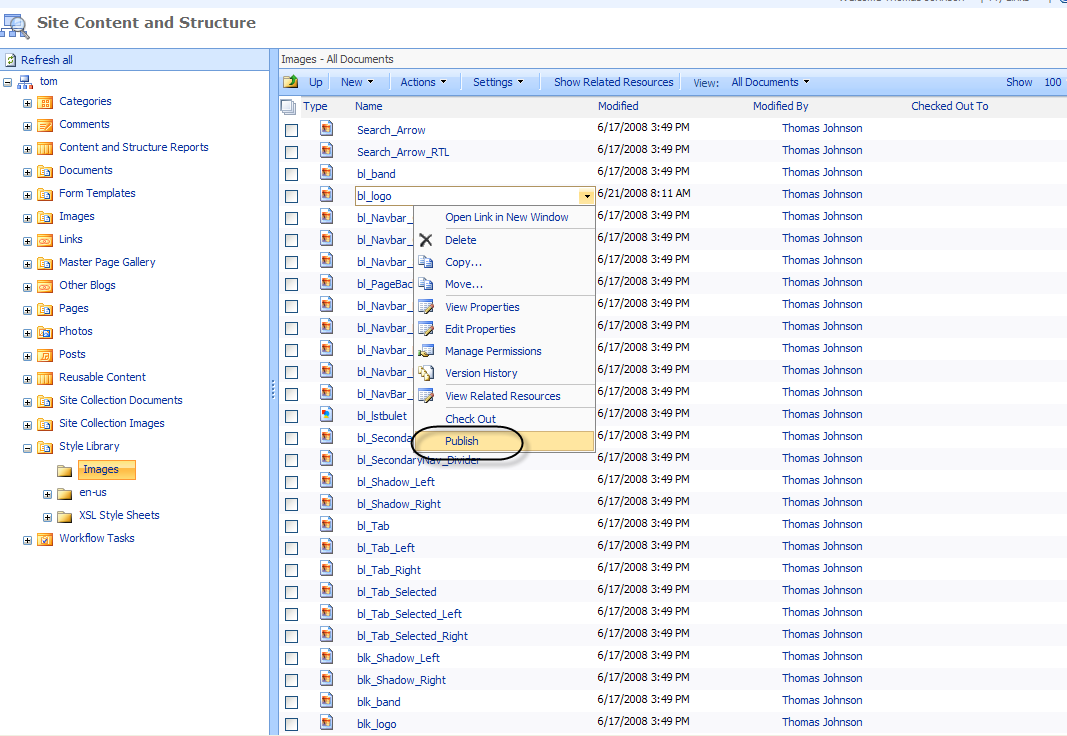
You can shoot yourself in the foot by removing the versioning settings of the document library where your images are stored. If you edit the library's settings and choose no versioning, you don't have an option to publish the images, and I believe they never show. I know that I spent a while pulling my hair out before I figured out what was wrong.
6. If you edit the Summary View and change the item limit, it breaks the code and you have to generate a new site to figure out the code to fix it.
Do you think I've hit on some unintuitive processes for web design? Wait until you read this one. There's a nasty bug in SharePoint that actually breaks the code if you make a certain modification to a blog site. Open up the category view of a blog, and then edit that category view.
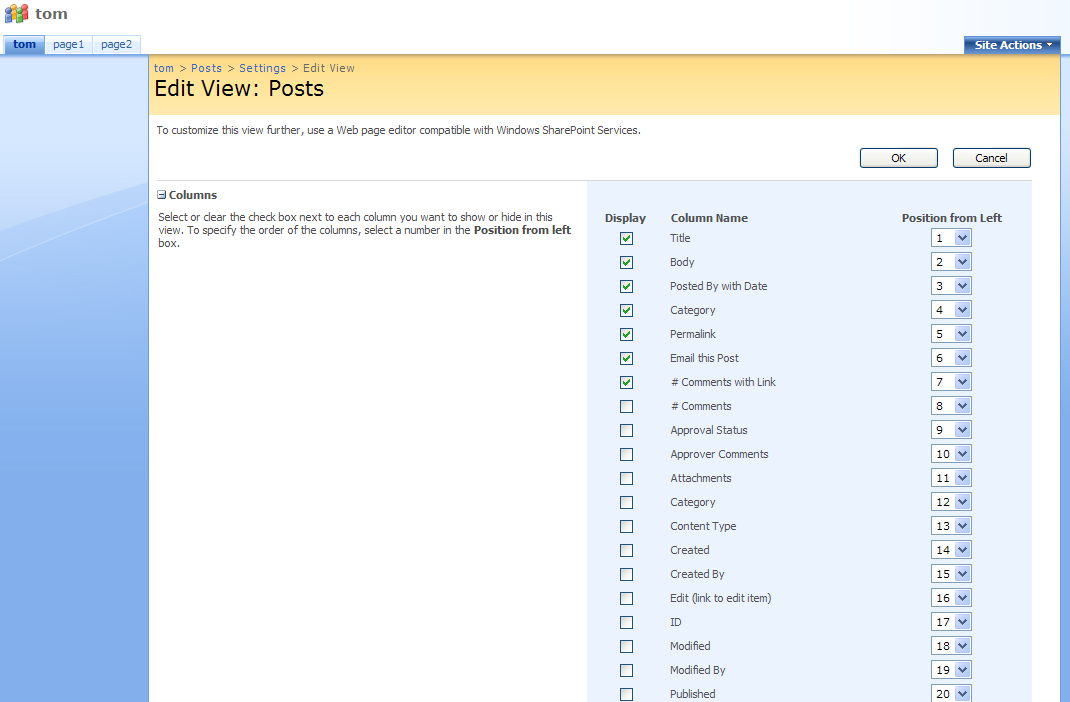
Change the item limit for the default summary view of that category. Bam, it just broke some code. When you click a category now, only one item in the category shows, rather than all posts of that category.
The details aren't something I want to delve into here. But basically to fix the problem, you have to open the category page in SharePoint Designer and replace some code with the same code from a working site.
Open the category.aspx page in SharePoint Designer. Select the Split view, and then select the Posts web part in the Design view. Then in the Code view, look for listxmlview and replace that entire part with code from a new SharePoint category.aspx page (using the same selection).
I'm not kidding about this. You might not want to make too many modifications to the default category views if you're using a blog site.
7. If you modify a theme, switch back to the default, and then return to your modified theme, all modifications are gone.
There's something else you should know about modifying themes. When I first started modifying a theme, I started modifying one of the pre-built themes you can choose without slipping into the Publishing features. I switched to Vintage, modified a bunch of files for an hour or two, and then switched it back to the Default theme because I realized modifying Vintage would take me all day due to the massive number of images and the inability to actually access them in mass.
When I switched back to Vintage, I discovered, in an unpleasant way, that all my changes were gone. It seems that each time you select one of these themes, SharePoint copies down the theme's files anew from the server, overwriting any changes you made to the theme.
After that, I decided not to switch back and forth between themes, so I can't say that the same is true for master pages like Blueband. Still, you might want to back up your modifications before switching around those master files/themes.
8. To configure the search to see just blog posts, you have to enter a code that does not exist anywhere on the Internet or help file.
The way I set up my SharePoint site, I chose a blog site and created about a dozen views of the blog posts. Views define specific ways of looking at the same information. For example, one view may include only certain categories, another view may include only the post titles, and so on.
When I searched for a file using SharePoint's search box, the search results showed all of my view pages first before the actual blog post files. As a result, the search was worthless until the second or third page of results.
Fortunately, SharePoint does allow you to configure the search at the site collection level. You can set a scope with a specific search rule, and then modify the search web part to use that scope. I wanted the scope to return only blog posts, and not any view pages. To do this, you need to enter a certain contentclass code into the scope at the site collection level. This content class does not exist anywhere online that I've been able to find. Here it is:
contentclass = STS_ListItem_Posts
The following image shows where you enter that contentclass.
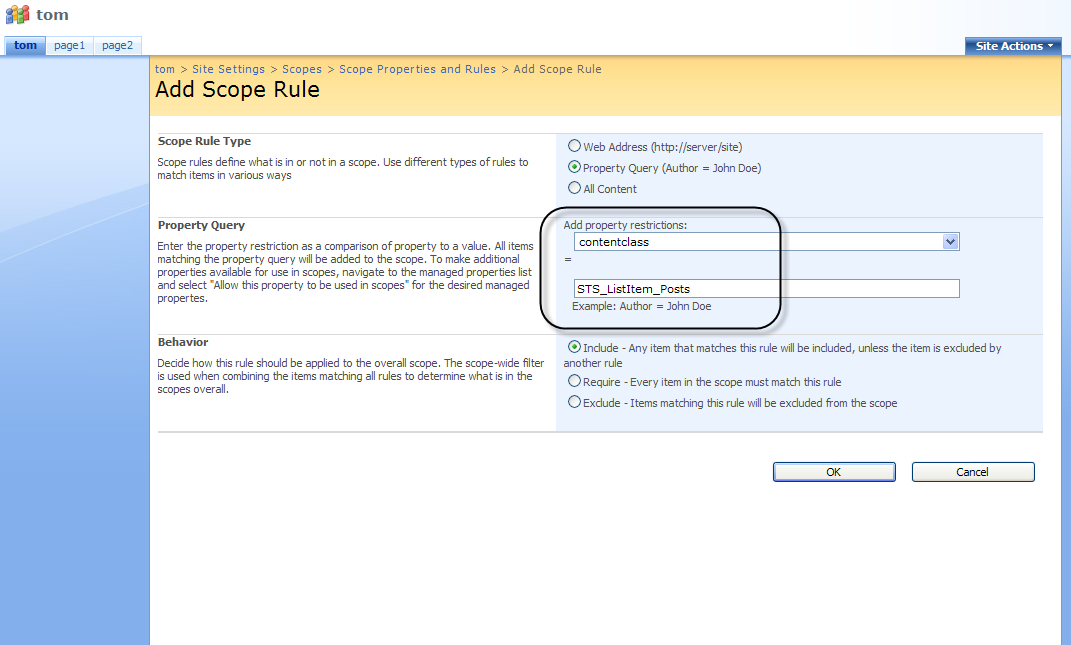
You may also want to restrict the results to a specific folder, such as http://yourdomain.org/blog/lists/posts. Once you set up this scope, the results are much better.
One thing I could never figure out is how to configure the best bets search. Supposedly, SharePoint allows you to enter synonyms for searches and then specify the results. For example, let's say you use the term "meetings" in your help, but your users also use the term "agenda." You can create a best bet so that when users search for agenda, the search results show URLs you've selected. But I was never able to get this feature working.
9. You can't control the look and feel of the admin side of things.
You may have spent weeks creating a beautiful interface for your users. But there's one ugly truth that will scare away anyone with collaborative purposes: the admin side of SharePoint can't be skinned (at least not without some tricky programming).
As long as users aren't creating posts, or editing wiki pages, or doing anything on the admin side, they won't know that the admin side still shows the default SharePoint style. But if they do need to go into the admin view, the experience can be jarring, as they go back and forth between themes.
You can't create a seamless experience with your new SharePoint site. You can only customize the clothes, not the body, so to speak. Here's what the Blueband master looks like as users view your SharePoint site.
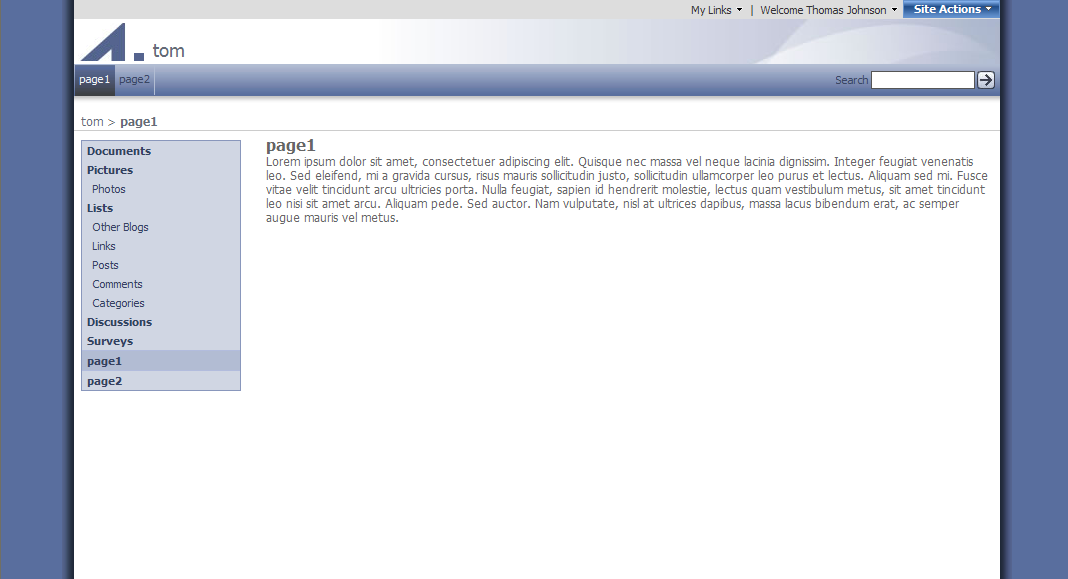
And here's what the same site looks like when you enter the admin side of it.
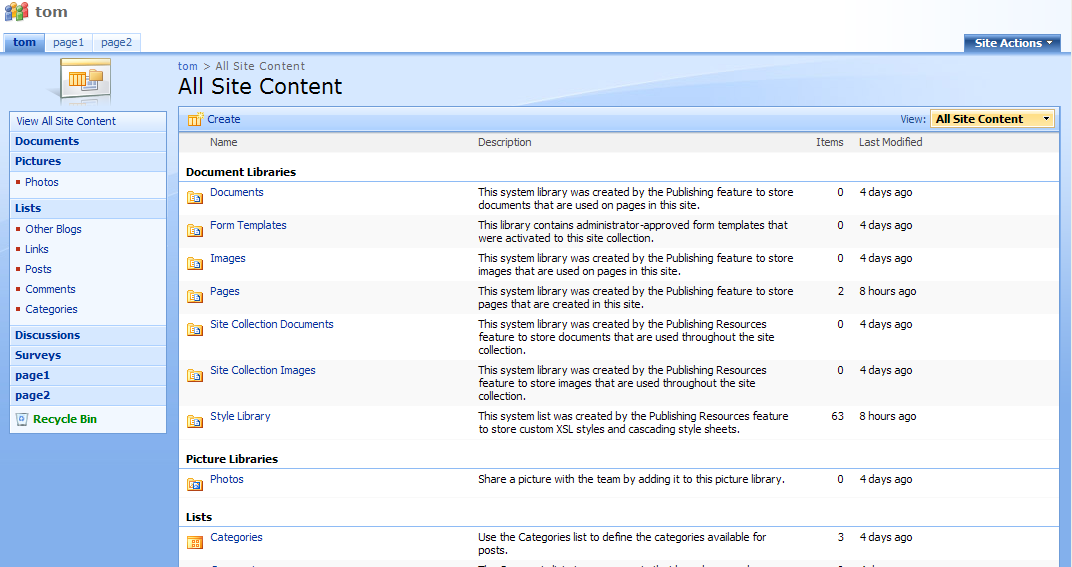
Nothing at all like the external interface. By now many of you reading this may be thinking, I'm never touching SharePoint. SharePoint is such a kludge of an application; no way I'm ever using that. Here's one more little surprise for you.
10. Site metrics don't tell you what post anyone has viewed.
Admittedly, one appeal of using SharePoint when it's integrated with Active Directory is to see not only the names of your visitors, but the posts they viewed. However, if you're using a blog site, get ready for some disappointment: you can't actually see which posts visitors viewed. The metrics entice you with informative looking color graphs, but when you start trying to piece together the information, it's missing a component: the actual post name.
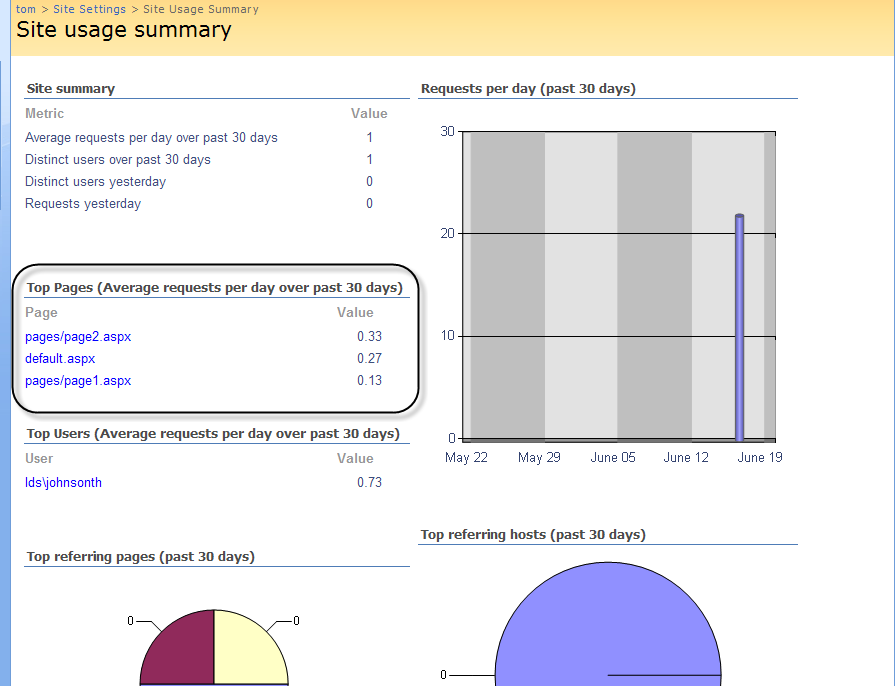
This is because I was using a blog site, and the pages I wanted to track were the posts. Surprisingly, posts are actually stored in a database somewhere, unlike wiki pages or other content pages.
The same metrics problem isn't true if you have a site with a lot of pages. Still, it proved somewhat unclimactic for me. I even attached some hit tracker code onto the post template, but it didn't propagate to the individual posts.
Conclusion
With all these quirks, it's hard to see why SharePoint is so popular. I suspect it's popular because none of these serious flaws are apparent until you try to customize your site, and 99% of the time people leave the sites as is.
Even despite these quirks, if you're company uses SharePoint, you may be stuck with it. Once you get these concepts down, however, SharePoint is a workable solution as a file repository, a website, and a corporate blog. SharePoint does provide a ton of collaborative features with almost no custom coding. Few other platforms can make the same claim.
Follow-up note: A couple of months later, after fully migrating my help content to SharePoint, I decided the platform had too many disadvantages for help authoring (for example, you can't export your content into different formats). I now use SharePoint only as a file repository and landing page for my help content.
About Tom Johnson

I'm an API technical writer based in the Seattle area. On this blog, I write about topics related to technical writing and communication — such as software documentation, API documentation, AI, information architecture, content strategy, writing processes, plain language, tech comm careers, and more. Check out my API documentation course if you're looking for more info about documenting APIs. Or see my posts on AI and AI course section for more on the latest in AI and tech comm.
If you're a technical writer and want to keep on top of the latest trends in the tech comm, be sure to subscribe to email updates below. You can also learn more about me or contact me. Finally, note that the opinions I express on my blog are my own points of view, not that of my employer.