


Home
  • About
  • Contact
  • My Calendar
  • Presentations
  • WordPress Consulting
  • Advertising
  • Podcasts
  • Jobs

  • Six Ways I’m Using the H4 Zoom Recorder to Do Technical-Writing Related Things

    March 12th, 2008 | Posted in Podcasting, Technical Writing 26 Comments »

    If you asked me 6 months ago how much I used my Zoom H4 digital recorder, it wasn’t much. I initially got it to record live interviews at conferences, and donations from my podcast listeners paid for the device. (Thanks, once again, guys.) But this past month, I’ve carried the Zoom with me everywhere I go. I use it almost every day at work. I can’t imagine getting by without it.

    If you’re a serious technical communicator, you probably need a high-end digital recording device like this. Seriously. It will change your career by allowing you to deliver more powerful content. It allows you to add the audio dimension to your deliverables, which will take you into new territory and expand your technical writing world.
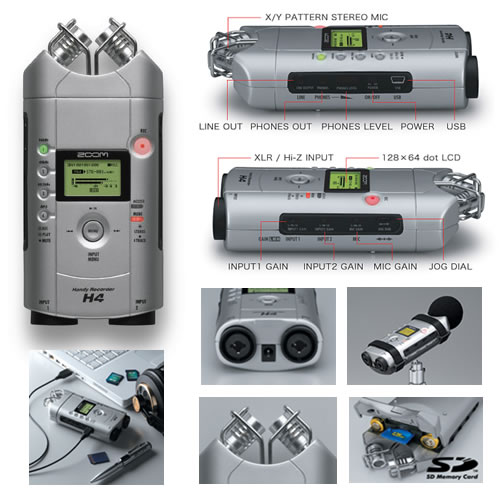
    Zoom H4 Samson Digital Recorder, $299

    Here are the six main situations in which I’m using the Zoom H4:

    1. Video Tutorials

    I always use the Zoom H4 to record video tutorials. My last help project had about 75 topics and 22 short video tutorials (by short, I mean 2-4 minutes). I think audio visual tutorials — done with real voice, not text captions — are one of the most powerful deliverables we can offer as technical communicators, almost more powerful than written manuals. Users absolutely love to see and hear how to do a task.

    Ever since I abandoned the text-caption method with Captivate, and started using off-the-cuff voice instead (using Camtasia), the video tutorials have been a lot easier and more natural to create. (Even though they’re off-the-cuff, I hit the pause and resume button many times while recording to gather my thoughts for the next few sentences. And sometimes I redo the recording 3-4 times before getting it right.)

    I also decided to ditch the pan and zoom feature that I so loved because the post-production editing (setting the pan and zoom points) was taking too long. I wanted to create these videos quickly — about 3-4 tutorials in one morning. I now leave the screen size at 800 x 600 — this rarely requires me to incorporate pan and zooms.

    Audio connects with users ten times more powerfully than captions. Bad audio can make you sound amateur, like you have a lisp or nasal congestion. Good audio, with a relaxed, eloquent voice (still working on that) can be like oasis in a desert for starving, frustrated users. The voice also makes your help human again — an extremely important element that is often missed without audio.

    The Zoom H4 acts as an audio interface to your computer and delivers crisp, clear audio — better than most other portable recorders. The only challenge is finding a quiet place to record. (I usually end up reserving a conference room somewhere.)

    2. SME Demos

    When I need a SME to provide a demo of an app I need to document, it’s reassuring to record the entire session. With a cheap recorder, I’d have to strain my ears trying to interpret what the SME says. With the Zoom H4, I connect it to my laptop and record with Camtasia Studio, and the Zoom H4 picks up the SME’s voice clearly. I set the Zoom H4 on a mini tripod near where the SME sits, and it works beautifully. It just does a lot better job at capturing audio than other mics (plus, the Zoom H4 acts as an audio interface for your computer, so you can set it as your mic for Camtasia recordings). I described my recording process here.

    If you use a cheap Olympus recorder, it can sound like sizzling bacon, and it will trap the audio in its own proprietary, super-compressed format (which you have to then export into WAV somehow). The Zoom H4 allows me to record directly in WAV or MP3 format.

    3. Presentations

    If I’m giving a presentation somewhere, either a software demo or a chapter presentation, or am listening to someone else present, the Zoom H4 does a great job capturing the audio clearly. I recently even bought a lapel mic and phantom adapter so I could clip a mic onto myself and record my presentation on blogging and podcasting, among others.

    I’ve also used the Zoom H4 to capture audio when others present. One time, I put the Zoom H4 on a side table and it captured the presenter and audience comments fairly well. You can easily prop the mic onto a tripod at the front of the room near the presenter, and capture the audio decently.

    The only drawback is that it is bulky and doesn’t come with a belt clip, so it is a little awkward attaching it to a presenter other than yourself.

    4. Podcasts

    Because the Zoom H4 works as an audio interface for your computer, you can use it to record podcasts too. Start up Skype and select the Zoom H4 as an audio interface, and instead of a staticky headset, you’ve got a professional sounding mic.

    I realize many technical communicators don’t record podcasts, but when I asked for STC candidates to share their stories last year, some of them seemed to use their laptops’ built-in mics, which are on par with Fisher-Price mics or Ham radio connections to China.

    Perhaps if more technical communicators did have audio equipment, they would record more podcasts.

    5. Live Interviews

    Because it’s so portable, the Zoom H4 really excels at live interviews. Last year at the STC conference I interviewed 20 different people (for example, listen to Jack Molisani here).

    Despite a lot of background audio and other extraneous noise, the Zoom H4 focused on the interviewee’s voice and captured it clearly. It allowed me to plug in an external standard mic (I used a Shure SM58) into the device. I’ve recently decided that the Zoom’s built-in mics are more powerful than external mics. (I still sometimes use the Gigavox Levelator to enhance the audio.)

    6. Jing Support Casts

    Jing is a quick video capture tool that works well for providing support to confused users or to demo bugs for developers (I wrote about this here.) It’s nice to have a quick mic available to record these.

    I find myself using Jing almost every day, particularly to show bugs to others. Seeing is 100 times more convincing than a convoluted description. Additionally, Jing already compresses the audio more than I like, making it sound a bit staticky. Without a good mic to record sound clearly, the Jing audio compression may degrade too much.

    Final Thoughts

    The price of the Zoom H4 ($299) is definitely a drawback. And you’ll spend another $100 in essential peripherals — a carrying case, a mini tripod, a 2 GB SD card, and possibly a lapel mic, phantom adapter, and standard mic. But man, this device is definitely worth it. A lot of you have purchased iPods for Christmas or your birthday. This isn’t that much more, and it will boost your career.

    As an added bonus, it also looks like a taser, so you can have fun pointing it at people and pretending to press a button.

    I never would have discovered this high-end recording device had I not gotten into podcasting. It’s interesting how skills in one field have carried over into another.

    These icons link to social bookmarking sites where readers can share and discover new web pages.
    • del.icio.us
    • StumbleUpon
    • Facebook
    • LinkedIn
    • TwitThis

    Tags: , , , ,

    26 Responses to “Six Ways I’m Using the H4 Zoom Recorder to Do Technical-Writing Related Things”

    1. Gizmo Girlwrote an interesting post today on Here’s a quick excerpt If you asked me 6 months ago how much I used my Zoom H4 digital recorder, it wasn’t that much. I initially got it to record live interviews at conferences, and donations from my podcast

    2. Scott Skibell says:

      Tom,

      Have you had any luck using the H4 while recording videos?

      I purchased a Samson C03U USB microphone thinking it would help me pickup better audio while recording iSight video on my Mac. The thought is to be able to “see” the speaker (at times) while recording a screencast (Camtasia or ScreenFlow) and I wanted better audio than what is built-in.

      I discovered the Samson doesn’t pick-up your voice very well unless you’re right on top of it. I don’t want to have the mic seen while on camera. The built-in mic on the Mac picks up the audio the best but it’s not as rich as I’d like.

      I’m curious how the H4 might help me on this one. Thanks for any insight.

    3. Scott Skibell says:

      As I think through this, would it be possible to use the H4 with the lapel mic?

      If the H4 is an audio interface, and if I can assign that as the microphone on my video program, I should be able to attach a lapel mic and capture much better audio.

      An added bonus might be the use of this during video taping. I image a two-camera shot but capturing a third-audio only track. A whole lot of post-production would be required but it might be easier than running around with boom mics to capture both speakers.

      You’ve got my mind running with possible solutions now. Guess I ought to head to eBay to ditch the Samson.

      Thanks again.

    4. Tom says:

      Scott, I haven’t tried recording video other than using Camtasia to capture a screen while recording audio. For example, I haven’t tried inserting a talking head into the screencasts yet. Mostly, I haven’t seen the need to include video when it’s mostly just someone talking. But it would be a nice bonus.

      Yes, you could attach the lapel mic to the Zoom H4 and also use it as an audio interface for your computer. I have tried this to experiment with the audio quality. However, at this point it gets to be a little expensive, because the lapel mic and phantom adapter will cost an extra $200.

      Also, the built-in mics of the Zoom H4 record at higher quality than the lapel mic. Maybe it’s just the lapel mic I chose, but it’s a decent one (phantom powered), and not that cheap. The audio isn’t bad, but it sounds a little flat to me.

      I can’t answer your questions about videotaping. I only think that unless there’s something to truly watch, just seeing a user ask a question isn’t that exciting. Still, if you get a good system going for video, let me know. Really the person to ask is Stephanie Bryant. Here’s her blog.

      I am planning to start up a series of virtual meetings that might include webcams of all the participants. I’m still working out the details on that.

    5. Scott Skibell says:

      Tom,

      Thanks for your insight. I’ll see if I can make do with the built-in mic on the iMacs. I’m trying to save my toy money for the new SSD Canon camcorders coming out. A Zoom H4 w/lapel setup would eat into that pretty good.

      I enjoy your blog. I’m looking forward to your virtual meetings series too. Thanks again for thought provoking posts.

    6. Tom says:

      Wait, don’t use the built-in mic on a mac. It will sound TERRIBLE. I really mean it. Someone was demo-ing a recording he did with the built-in mic on his Mac the other day, and it sounded like he was talking on a CB radio with a poor battery. If you don’t want to spend the money for a decent recording device, at least get a $30 Logitech USB mic from Best Buy or something. There are more options besides the Zoom. If you have a local music store, they can show you other devices.

    7. Isabelle says:

      Tom,

      About video tutorials with voice: how do you handle localization?
      Thanks for your blog.

      • Tom says:

        Isabelle, I’m not in a situation where I have to worry about localization. But you’re right — voice tutorials don’t really translate. Text captions rather than speech would of course work. Or with Captivate you could insert little translated audio clips for each slide (which would be incredibly tedious). How have you approached it?

    8. Scott Skibell says:

      Tom,

      The internal mic on the newer iMac’s doesn’t sound too bad. Here’s an example of one I did earlier this week. In it I just narrate a Keynote presentation real quick. It was a quick 3 minute “communication” presentation.

      http://www.scottskibell.com/prototype-presentation.html

      I think it lacks the richness though. I’ll be trying a couple of different mic’s this weekend as I try to find the right combination. I’ve got a USB adapter and several different mics. We’ll see how it goes.

    9. Isabelle says:

      Tom,

      Sorry, I was offline for a while.
      In my experience, when it comes to localizing tutorials, you pretty much have to redo everything – starting with the video, since you need to work with a different (translated) version of the software for the demo. And when your software is translated into 20 languages, this can be easier said than done ;-)

      Come to think of if, I would probably add this to your list of tests for evaluating tech writing job candidates: make sure they are aware of localization “issues” – because we know the consequences of not thinking global right from the start: to this day, we (the IT industry) are still struggling to get languages other than English display properly in all instances ;-)

    10. [...] make the Zoom H4 Handy Digital Recorder the most versatile portable recording device ever offered.Check out how one writer has used the Zoom H4 to further his carer![click to buy it now at our store] Click [...]

    11. [...] and a couple of his entries (Recording SME Demos — It’s Easier Than You Think and Six Ways I’m Using the H4 Zoom Recorder to Do Technical-Writing Related Things) particularly caught my attention.  [...]

    12. Josh says:

      Never heard of the zoom recorder before. it really does look cool. It has an unusual look to it and from what you wrote about it, it does seem to work fine as well. podcasting and vloging are soon going to become the only way to blog.

      Joshs last blog post..Microphones and Voice Amplification

    13. Deevan says:

      Very nice review, and it does what you want. I currently have 2 multi-track recorders, a Fostex and a Boss- both which are not portable and I am seriously considering getting one of these devices.

    14. [...] connect my microphone to my laptop. I use an H4 Zoom recorder that connects to my laptop with a USB cord. My laptop then recognizes the Zoom as a microphone [...]

    15. Aiso Job says:

      I guess you made very good use of the Zoom recorder. Thanks also for the Jing info.

    16. Hello. I have more of a question, rather than a comment. First of all, thank you for all of the helpful info on the H4. The organization I work for has purchased one to record seminars and workshops, but the room we conduct these in has such high ceiling that the sound gets lost before it gets to the H4. I was very interested in the info on the laper mic and phantom adapter, as it has become my task to find a way to make this recorder work for us. What I am wondering is if you can tell me what kind of mic I would be looking to purchase. I believe it is a stereo, rather than mono, but I am not entirely sure, and there are several different options to choose from. Also, any other info or advice you can give me on purchasing a mic would be greatly appreciated, and very helpful. You seem to be very familiar with this device. Thank you in advance.

      -Anna.

      • Tom says:

        You can attach a wireless microphone to the Zoom H4. Go to the Sound Professionals and ask them for recommendations on wireless mics to attach to the Zoom H4. Wireless mics are expensive, but if you buy cheap ones, they sound terrible. I personally don’t have one. I have a wired lapel mic that I attach with a phantom pack adapter (again, which I got from the Sound Professionals). It records well, but is bulky to hook on to a presenter. I think you’ll definitely want to shell out $600 for a great mic, if you’re constantly recording mobile presenters.

        If people just stand in the same place in front of a podium, then you can just prop the H4 on a little tripod. That works well too. If you listen to my latest podcast, that’s how I recorded it.

        Two other tools that are helpful: Soundsoap 2 and the Levelator. The first will take care of unwanted white noise. The second will increase and level the volume. Let me know how it goes. I’m interested to know what you’re experience is with the wireless mic you buy.

        (By the way, I had to create my own little H4 holster when I attach it to presenters.)

    17. Ok, so I have done some research and have a new question. I understand that you have used the H4 with a lapel mic that plugs into it, have you tried it with a wireless lapel mic, and do you have any specific recommendations for wireless lapels?

      -Anna.

    18. Thank you Tom for the feed back. I did listen to part of the recording you made with the lapel mic and it sounds great to me. Our speaker isn’t stationary, so I know that I will need to recommend some kind of a lapel mic. I don’t know if we are prepared to spend $600 however, so we may decide to go with a wired lapel mic, which it looks like we can get for under $200. Is the link to the lapel mic and the phantom adapter in the Presentations paragraph above, the same equipment that you used for your recording, and are there price margins I should be aware of if we do decide to go with a wired lapel mic? I had originally thought that a $200 wireless would be good enough, so I am glad to get your opinion about the quality of cheaper equipment. Thank you again for the information.

      -Anna.

    19. Tom says:

      I have reservations about the method I use. The wired lapel mic works, but it’s like hooking a lunchbox on the presenter — awkward and a little imposing. A wireless mic may work well for you, but it may not. I’m really not sure. One time I did spend $200 for a pair of samsun wireless handheld mics, but they just didn’t sound good to me.

      To attach the H4 on the presenter, I bought a PDA pouch with a clipclip, had my mother-in-law enlarge it a little so the Zoom would fit into it, and then I have the presenter clip that on his or her belt. It always draws some chuckle to see this, though. However, if you listen to this presentation from Collin Turner, that’s how we recorded it.

    20. Hello Tom.

      So we have purchased a wirless lapel mic from radio shack for 50 bucks, and it sounds pretty good actually. I have done some test recordings with it and the H4 that I am pleased with, and we are preparing to use it this weekend at a workshop, so that will be the true test. I can email you some samples if you’d like.

      Thanks for the info about soundsoap 2 and the levelator, its helpful to know what works for other people.

      -Anna.

    21. Robert Bixby says:

      what about using the microphone inputs with dynamic microphones? I understand that you can plug either an xlr male or a 1/4-inch mike plug in the same input. But I have purchased a pair of contact microphones for recording telephone conversations and I can’t get them to generate enough of a signal even to move the v/u meters, and that’s with manual gain set at maximum power and microphone gain set at minimum (I tried each setting, but if I understand the instructions correctly, if you have a faint input, you should set it at minimum). I bought them thinking they were dynamic microphones (they have barrel-shaped sections that look like they might house a coil) but it occurs to me now that they might be crystal microphones. Could that make a difference?

      • Tom says:

        Robert, I’m really not sure how to answer your question. If the mics are phantom powered, you would need a phantom power adapter/pack for the mic. I haven’t experimented much with 1/4 inch mics in the XLR slots. You might try calling thesoundprofessionals.com. They usually have excellent advice and mic recommendations for the Zoom H4.

    22. [...] Samson Zoom H4 Digital Recorder: Six Ways to Maximize Your Use of This Awesome Device | I'd Rath… – Useful summary of using the zoom h4. Comments are useful. [...]

    Leave a Reply

    « »