

Wordpress 2.1 Review
WordPress 2.1 offers some major new enhancements that I would like to touch upon here. I think these enhancements are the best thing WordPress has done in a while.
Import/Export and the Zen of the Free
In a podcast titled the Zen of the Free, Simon Phipps — chief open source officer at Sun Microsystems — explains that open source content only has appeal if you can get your data in and get your data out. Users want to be like butterflys, trying out a service and then moving to another — they don't want their data locked into any one application.
For example, if you download a new calendar application, you want it to support ical or vcal format so you can import your data in, and export it when you're ready to move on.
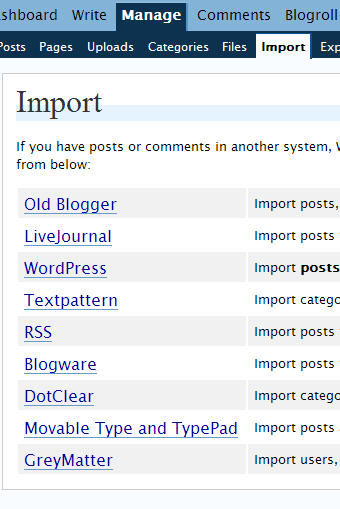
WordPress allows that. First, their import function allows you to migrate your data from almost any blogging platform.
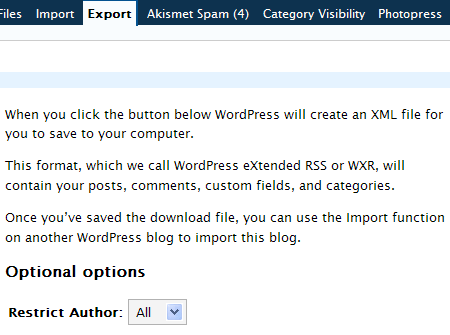
And just as important, when you're ready to move on to another blogging platform, you can export your content. (I'm actually not sure if the XML file is supported by other blogging platforms, but I'm assuming it is -- at least it should be.)
Visual Editor
WordPress 2.1's editor is by far superior to the previous version. You can flip back and forth between the WYSIWYG editor and the code editor in a flash. AJAX functionality drives this and many other interface changes. Things load instantly. The editor seems more functional and less prone to error.
Additionally, the editor is user-friendly to beginners. In an interview from the WordPress podcast with Matt Mullenwig, the WordPress founder said that making the code view the default, as many experienced bloggers preferred, was an elitist decision that he wouldn't make. I agree with Matt and am glad he put effort into probably the most important feature of WordPress -- the feature used to write blog posts.
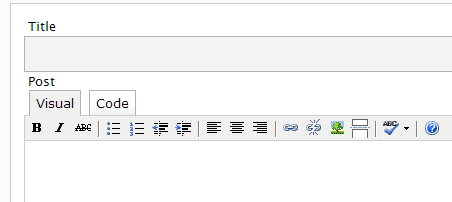
Image Uploading
I was really happy to see their improvements to the image uploading feature. In previous versions, this image uploading was the most nonintuitive uploading I had ever seen. They have completely fixed it. Now even my wife is happy! Previously I had written that Blogger made image uploading super easy, and that Blogger might be preferable to people who want a blog with no hassle. Now the image uploading feature in WordPress is as easy as image uploading in Blogger. There's no need to install special photo/image plugins that overcome its shortfalls. In fact the options you can select about sizing and linking might make it even better than Blogger's image uploading feature.
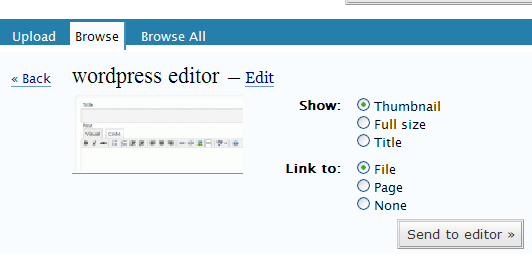
Image Management
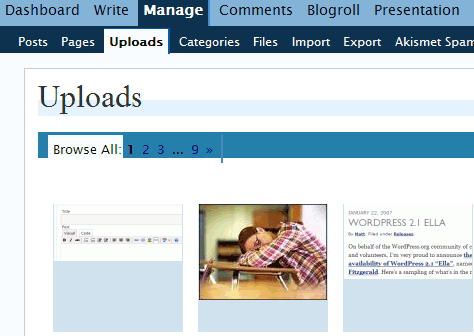
In addition to fixing image uploading, you can also manage your images online now. It used to be that browsing for images was quite awkward. Now you can see thumbnails of your images all organized on their own tab.
Home Page Options
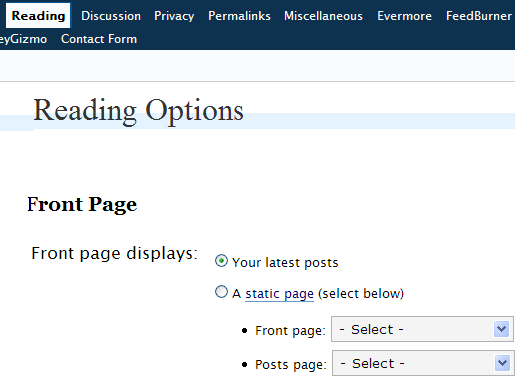
Another major improvement is the ability to select a home page separate from your blog posts. By default, you home page shows your blog posts. To get around this, you had to do some tricks that were not all that difficult, but nonetheless I remember spending at least 1-2 hours trying to figure it out one night.
Now you can simply set this from within the Options > Reading panel of WordPress.
Other Enhancements
When you type posts, a new autosave feature saves it every few minutes. This is convenient so that you don't have to keep clicking the Save and Continue Editing button.
Also, when updating your list of links (blogroll), you can more quickly delete and add links. AJAX makes this process much, much faster. And overall the interface is like lightening compared to the previous.
All in all, this upgrade (which is free, as always) will continue to make WordPress one of the most popular, flexible, and enjoyable blogging platforms out there.
Upgrading
If you installed WordPress within the last year, you can probably upgrade your blog in about 10 seconds. Go to your cPanel and click Fantastico (similar to how you installed it). Click WordPress, and look for information about your WordPress installation. You should probably see a link that says something like "upgrade to 2.1." All you have to do is click that. (Of course you may want to do a full back up first, and make sure your theme and plugins are compatible with 2.1.)
If your WordPress installation is older, you may have to manually swap in some files, but it's not difficult. I wish they would find a way to incorporate the auto-installer for older installations.
Note: I've been referring all to the version of WordPress that you maintain on your own web host (Lunarpages is the best host out there in my opinion). If you're using the WordPress that is hosted at Wordpress.com, then all these features have been in place for some time now.
If you've been using LiveJournal, Blogger, or some other platform, you may consider switching to WordPress, especially with the easy import functions.
About Tom Johnson

I'm an API technical writer based in the Seattle area. On this blog, I write about topics related to technical writing and communication — such as software documentation, API documentation, AI, information architecture, content strategy, writing processes, plain language, tech comm careers, and more. Check out my API documentation course if you're looking for more info about documenting APIs. Or see my posts on AI and AI course section for more on the latest in AI and tech comm.
If you're a technical writer and want to keep on top of the latest trends in the tech comm, be sure to subscribe to email updates below. You can also learn more about me or contact me. Finally, note that the opinions I express on my blog are my own points of view, not that of my employer.